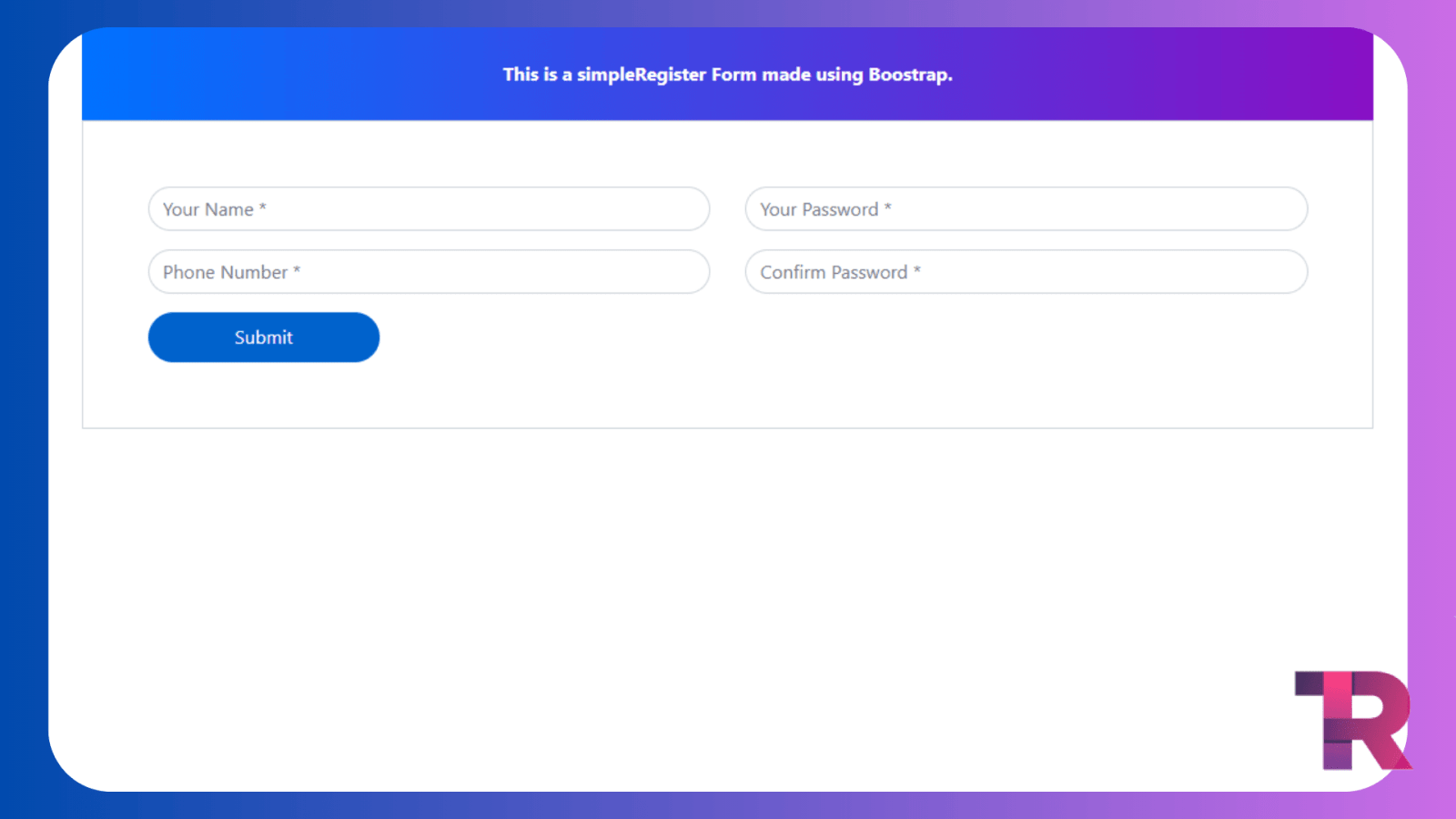
How To Create Bootstrap 4 Simple Registration Form
Bootstrap 4 is a popular front-end framework that provides developers with a range of tools and components to create modern and responsive interfaces. One of the essential components of any website or application is the registration form, which allows users to sign up and access the platform’s features.
Bootstrap 4 Simple Registration Form is a straightforward approach to designing a registration form that is optimized for desktop and mobile screens. This form features a clean and modern design, with input fields and buttons that are large enough to be easily clickable.
The form is designed to be simple and easy to use, with minimal input fields that capture the necessary user information. It also includes validation rules to ensure that users enter the correct information in each field.
Bootstrap 4 Simple Registration Form is a must-have component for any developer looking to create a user-friendly registration process.
Bootstrap 4 Simple Registration Form Using HTML & CSS
HTML Code
Start Template
<!DOCTYPE html>
<html>
<head>
	<meta charset="utf-8">
	<meta name="viewport" content="width=device-width, initial-scale=1">
	<title>Bootstrap 4 Simple Registration Form - torqueprogramming.co.in</title>
	<link href="//maxcdn.bootstrapcdn.com/bootstrap/4.1.1/css/bootstrap.min.css" rel="stylesheet" id="bootstrap-css">
	<script src="//maxcdn.bootstrapcdn.com/bootstrap/4.1.1/js/bootstrap.min.js"></script>
	<script src="//cdnjs.cloudflare.com/ajax/libs/jquery/3.2.1/jquery.min.js"></script>
	<link rel="stylesheet" type="text/css" href="style.css">
</head>
<body>


</body>
</html>
Paste the below code in your <body> tag.
<div class="container register-form">
	    <div class="form">
	        <div class="note">
	            <p>This is a simpleRegister Form made using Boostrap.</p>
	        </div>

	        <div class="form-content">
	            <div class="row">
	                <div class="col-md-6">
	                    <div class="form-group">
	                        <input type="text" class="form-control" placeholder="Your Name *" value="" />
	                    </div>
	                    <div class="form-group">
	                        <input type="text" class="form-control" placeholder="Phone Number *" value="" />
	                    </div>
	                </div>
	                <div class="col-md-6">
	                    <div class="form-group">
	                        <input type="text" class="form-control" placeholder="Your Password *" value="" />
	                    </div>
	                    <div class="form-group">
	                        <input type="text" class="form-control" placeholder="Confirm Password *" value="" />
	                    </div>
	                </div>
	            </div>
	            <button type="button" class="btnSubmit">Submit</button>
	        </div>
	    </div>
	</div>
Output Till Now

CSS Code
Create a file style.css and paste the code below.
.note {
    text-align: center;
    height: 80px;
    background: -webkit-linear-gradient(left, #0072ff, #8811c5);
    color: #fff;
    font-weight: bold;
    line-height: 80px;
}
.form-content {
    padding: 5%;
    border: 1px solid #ced4da;
    margin-bottom: 2%;
}
.form-control {
    border-radius: 1.5rem;
}
.btnSubmit {
    border: none;
    border-radius: 1.5rem;
    padding: 1%;
    width: 20%;
    cursor: pointer;
    background: #0062cc;
    color: #fff;
}
Final Output

Credit kshiti06
You May Also Like